An example of TradingView Alerts in your Algorithm Intelligence Strategy
This article shows an example of using TradingView alerts as a source for your Algorithm Intelligence Strategy. Alerts can be used as signal and/or trend strategies.
We recommend using Cryptohopper strategies alongside your TradingView alerts — this gives the bot data to backtest and results in trades opening faster.
How to receive TradingView alerts in your AI
Use TradingView's alert system to send signals to your bot via a webhook. Configure your webhook using the TradingView App. Instead of sending buy/sell commands, you can send signal and trend data only.
In all examples, use lowercase letters at the beginning of every parameter.
Example 1 — Send a buy signal
Send a buy signal for DOGE on the market and exchange of your selected bot:
hopper_id:XXXXXX
coin:DOGE
action:signal
set:buy
Valid values for set: buy, sell, neutral
Example 2 — Set a trend
Set an uptrend for DOGE:
hopper_id:XXXXXX
coin:DOGE
action:trend
set:up
Valid values for set: up, down, neutral
Example 3 — Set trend and signal simultaneously
hopper_id:XXXXXX
coin:DOGE
action:trend,signal
set:up,buy
How to use the webhook link
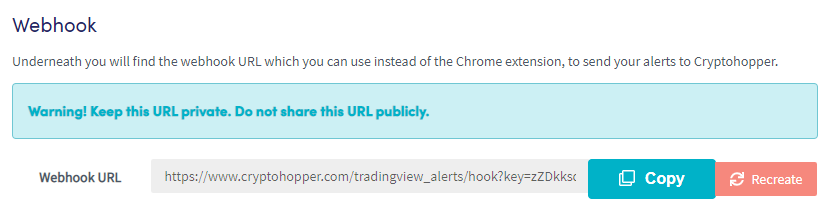
The webhook link is found on the same page where you create the alert in TradingView. You will need this link when configuring your alert.
How to create alerts on TradingView
Step 1 — TradingView account
A TradingView account is required. The free plan supports a limited number of alerts; a paid subscription allows more.
Step 2 — Find the correct chart
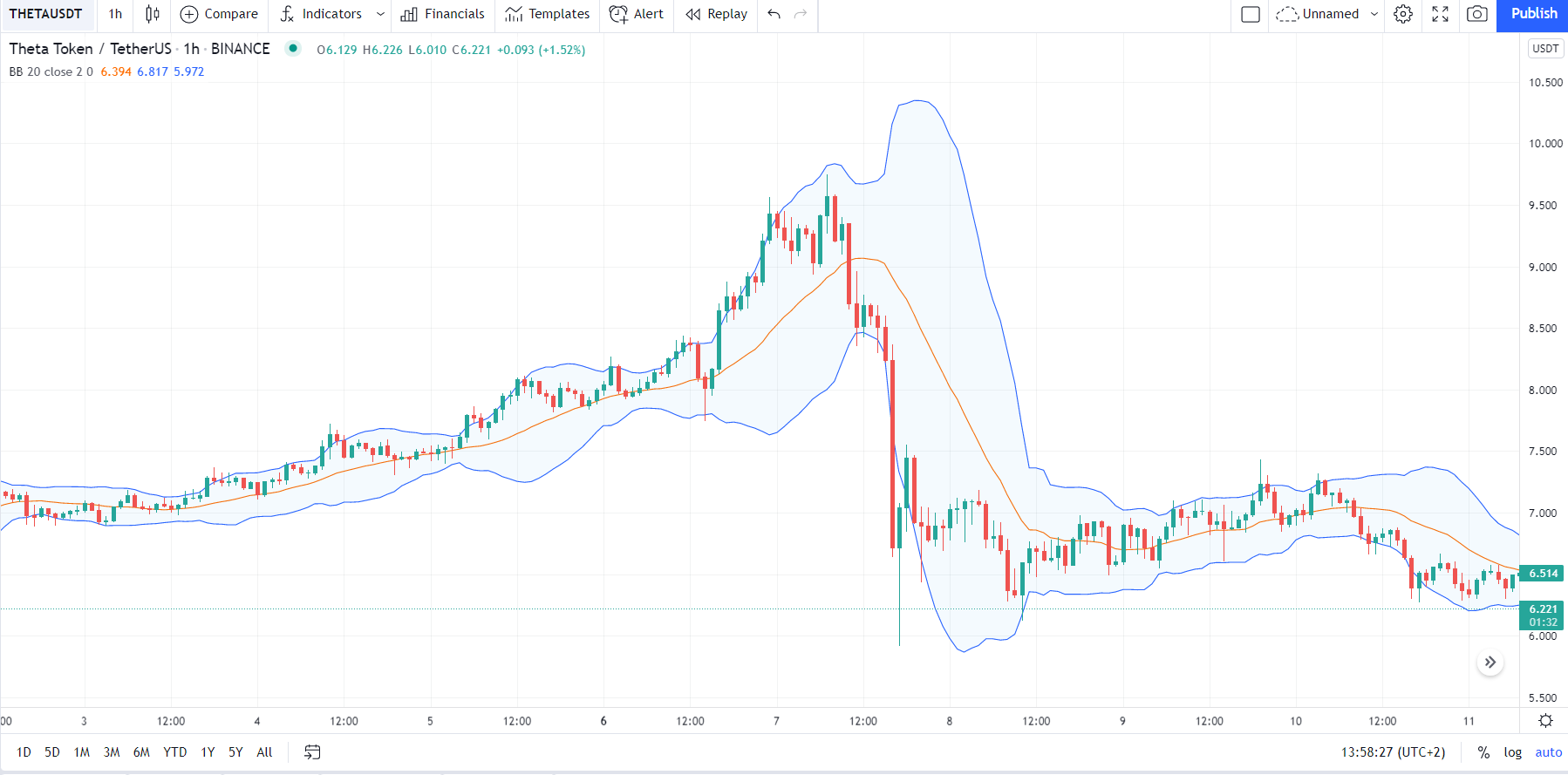
Search for your trading pair and exchange. Make sure you are using the correct candle size for your alerts — this is found in the upper left corner of the chart. Then select your indicator. In this example, we use Bollinger Bands.
Step 3 — Create the alert
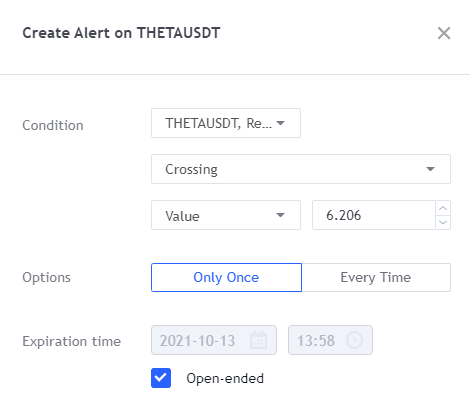
Click "Alert" at the top of the chart. In this example, we create an alert for a sell signal on THETA/USDT. Since Bollinger Bands signals a sell when crossing the upper band, we select "crossing", BB, and "upper". We set the trigger to "Once Per Bar" to continue using the alert for signal validation.
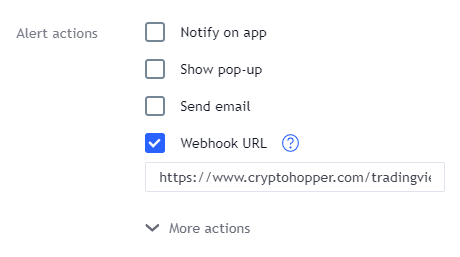
Add the webhook link in the Notifications section.
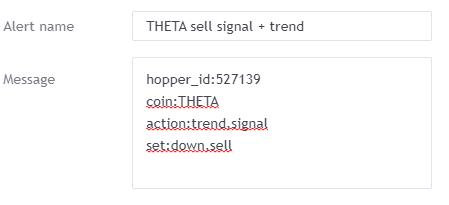
An example of a TradingView alert configured for trend only:
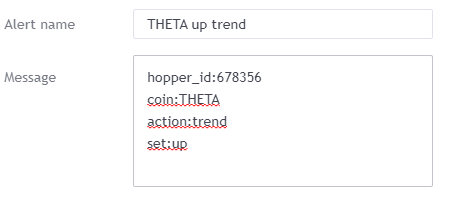
Add the action parameters manually in the message section, then click "Create". Note: you will also need to create a similar alert for buying — you can copy the sell alert settings and adjust accordingly.
Step 4 — Add TradingView as a source in your AI
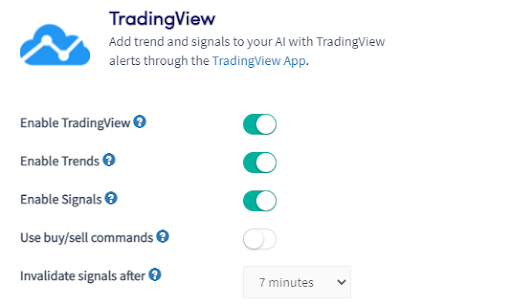
Go to your AI, click "Sources", and select TradingView. Configure the following settings:
Enable TradingView When enabled, your AI will use signals and trends sent through your TradingView webhook.
Enable Trends When enabled, your AI will follow the trend signals from TradingView.
Enable Signals When enabled, your AI will follow buy/sell signals from TradingView.
Use buy/sell commands Allows the same buy/sell signals to be used in other bots. This does not need to be enabled when using the AI only.
Invalidate signals after The bot checks TradingView alerts every 2 minutes. Since the full AI checking cycle can take around 6 minutes, use a low value when scalping — for example, 4 minutes. The maximum is 1 day.