Qué encontrar en la Vista Avanzada
Esta guía te muestra qué puedes encontrar en la Vista Avanzada.
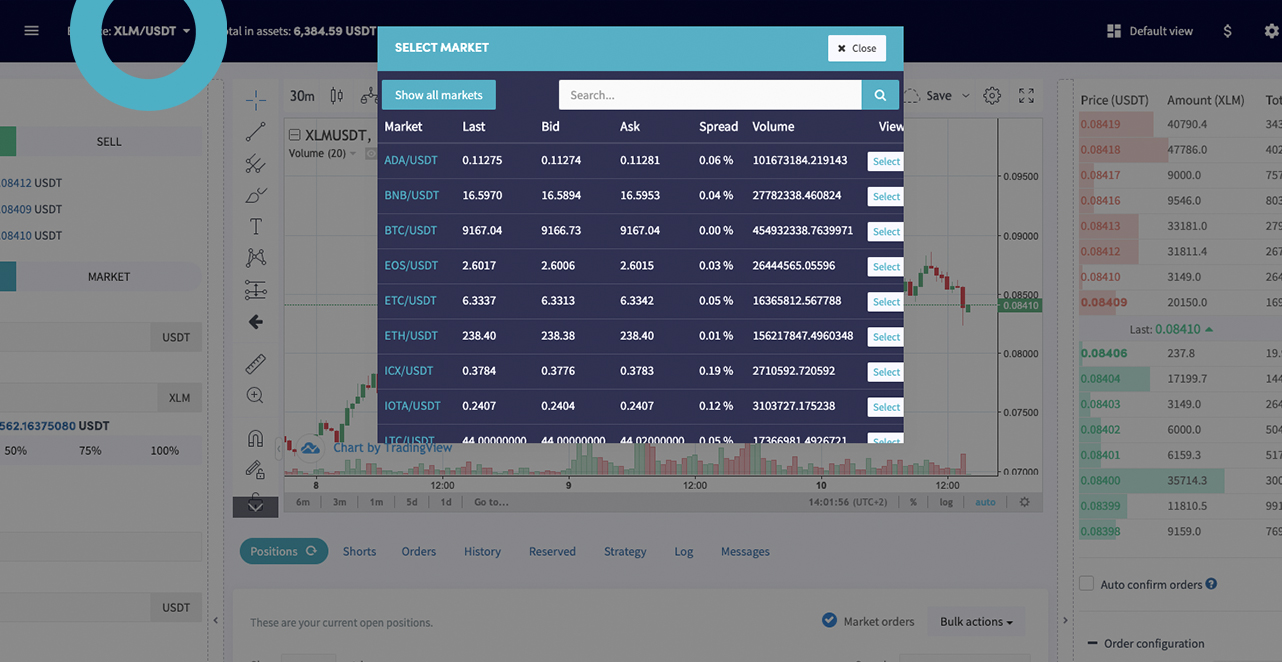
La Vista Avanzada muestra un mercado a la vez. Cambia de mercado haciendo clic en el par en la parte superior izquierda. El gráfico ofrece un conjunto completo de herramientas de trading, y puedes guardar plantillas de indicadores técnicos para verificar rápidamente valores en tus monedas seleccionadas.
Barra superior
Vista predeterminada Cambia de la Vista Avanzada de vuelta al panel de control estándar.
Signo de dólar Ve todos tus activos.
Rueda de engranaje Ve y ajusta algunos de los ajustes de tu bot.
Pantalla completa Expande la vista a pantalla completa.
Modo oscuro Haz clic en el ícono de la luna para cambiar al modo oscuro.
Discord Abre el canal de Discord de Cryptohopper.
Botón de perfil Accede a tu cuenta, suscripciones y cierra sesión.
Gráfico y trading
Formulario de orden Coloca una orden manual de compra o venta directamente desde el gráfico.
Libro de órdenes Ve el libro de órdenes en vivo y observa dónde se encuentra tu orden. Arrastra y suelta tu orden a un nuevo nivel de precio sin cancelarla y recrearla.
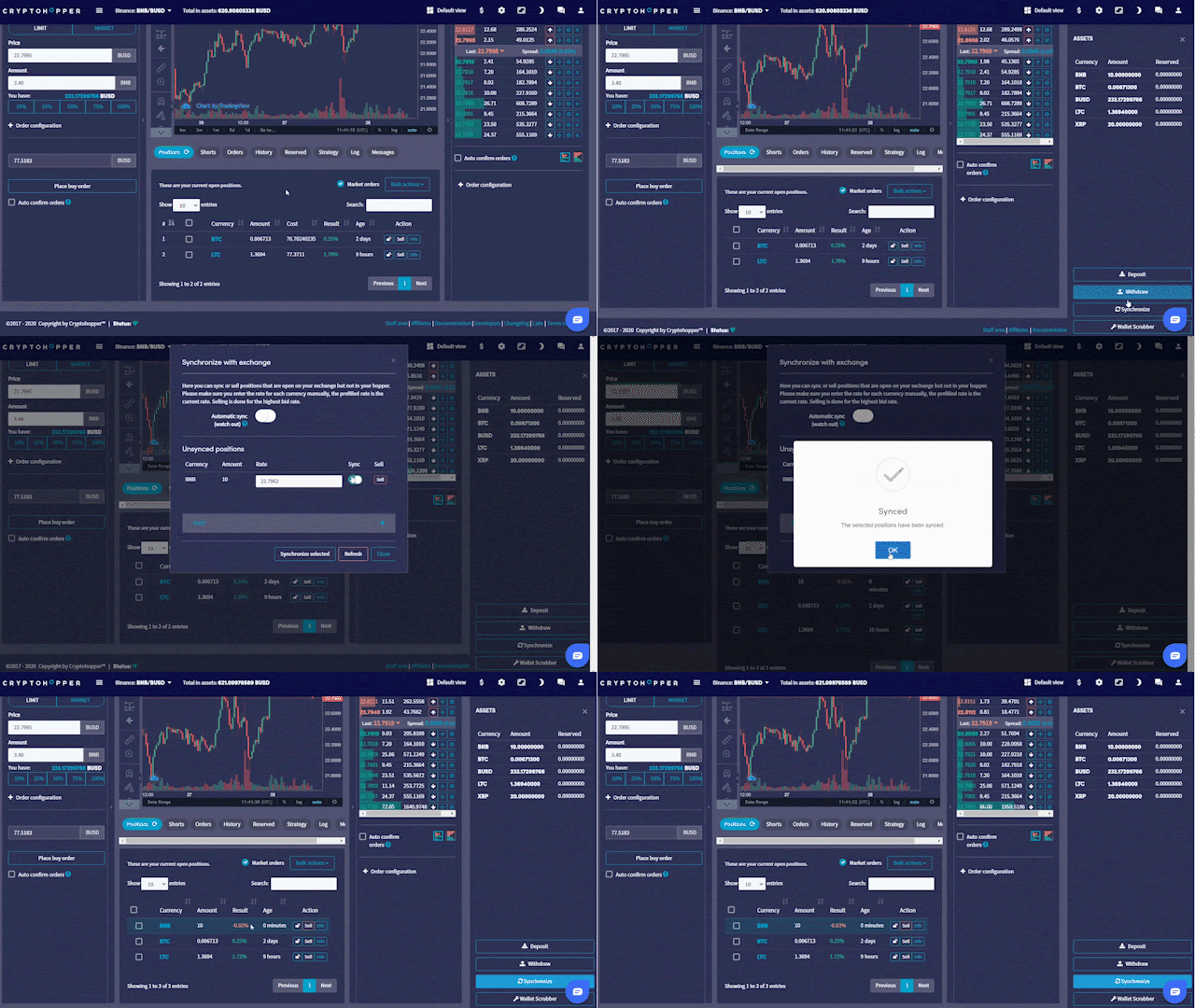
Sincronizar
La sección de activos muestra todas las monedas que posees en tu exchange. Haz clic en "Sincronizar" para convertirlas en posiciones abiertas en tu bot. El bot usa el precio actual del mercado como precio de compra y establece la posición en 0% de ganancia. Para garantizar un seguimiento preciso de las ganancias, ingresa el precio de compra real en el campo "Tasa" antes de sincronizar.
Habilita la sincronización en las monedas que desees, luego haz clic en "Sincronizar seleccionadas". La posición será gestionada por los ajustes de tu configuración base — Take Profit, Stop de Pérdida, Stop Dinámico de Pérdida, Estrategia o Señales.
Paneles
Posiciones Tus posiciones abiertas actuales.
Shorts Tus posiciones short abiertas actuales.
Órdenes Tus órdenes abiertas actuales.
Historial Una vista general de tus últimas 50 operaciones.
Reservado Tus fondos reservados actuales.
Estrategia Muestra lo que tu bot está escaneando según tu estrategia configurada.
Registro La salida del bot — errores, problemas y mensajes que explican por qué el bot está o no está tomando acción.
Mensajes Actualizaciones y anuncios de Cryptohopper.