Cómo configurar Toridion Quantabotics
Esta guía te muestra cómo configurar Toridion Quantabotics y explica los ajustes que necesitas completar.
Prerrequisitos
- Una cuenta de Cryptohopper.
- Una cuenta de Toridion Quantabotics.
Pasos
- Ve a tu cuenta de Cryptohopper y haz clic en "Marketplace".
- Haz clic en "Apps".
- Haz clic en "Quantabotics".
- Inicia sesión en Quantabotics.
- Elige si deseas configurar el Switcher o el Volatility Protect.
- Completa todos los campos requeridos.
- Haz clic en "Guardar Configuración de Hopper".
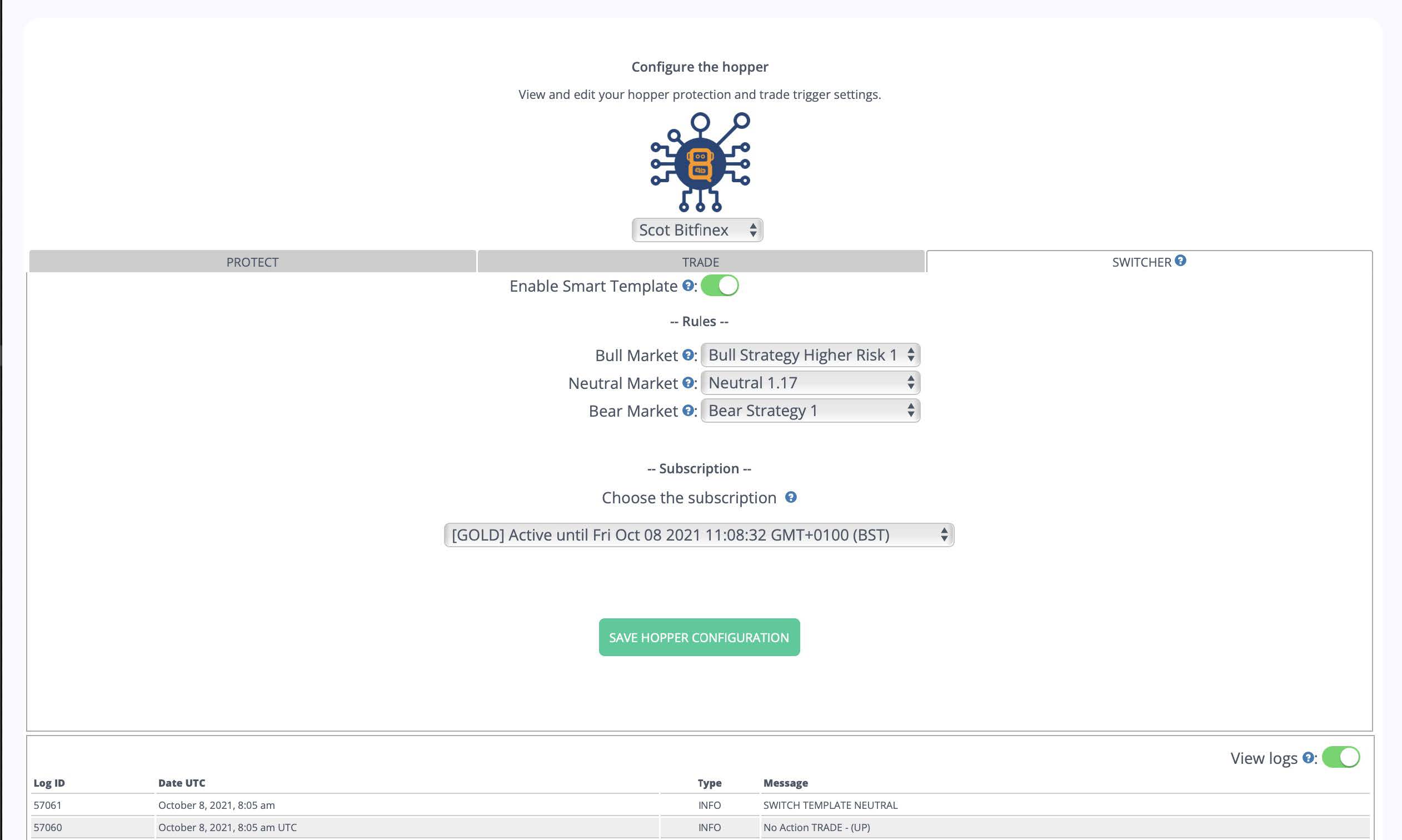
Ajustes del Template Switcher
Habilitar Plantilla Inteligente Activa el toggle para activar el Switcher.
Mercado alcista Selecciona la plantilla de Cryptohopper que deseas usar en un mercado alcista.
Mercado neutral Selecciona la plantilla de Cryptohopper que deseas usar en un mercado neutral.
Mercado bajista Selecciona la plantilla de Cryptohopper que deseas usar en un mercado bajista.
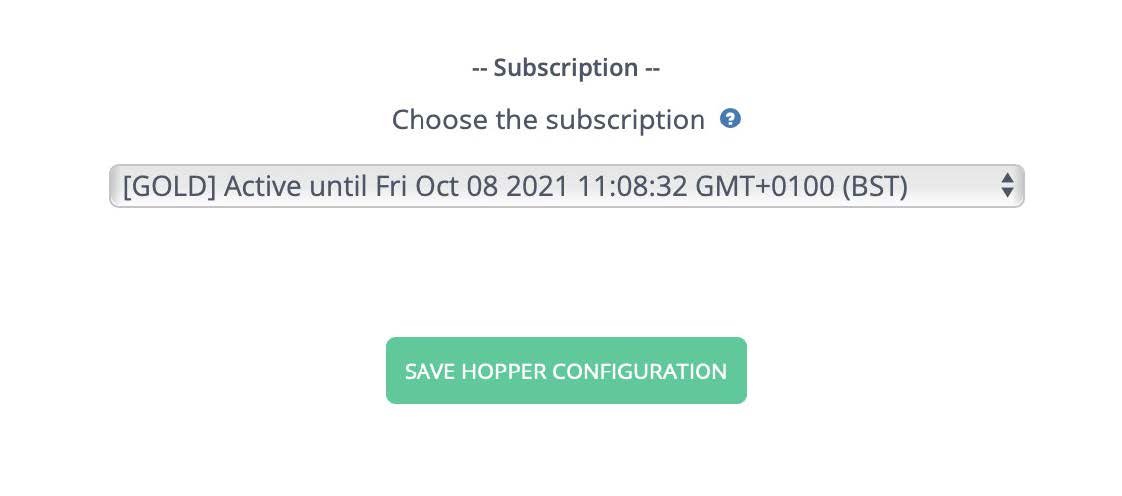
Elige la suscripción Selecciona qué suscripción usar. Nota: un Quantobot sin suscripción no enviará comandos a tu bot de Cryptohopper. El Switcher solo funciona con servicios de Switcher — no funcionará con el Volatility Protect.
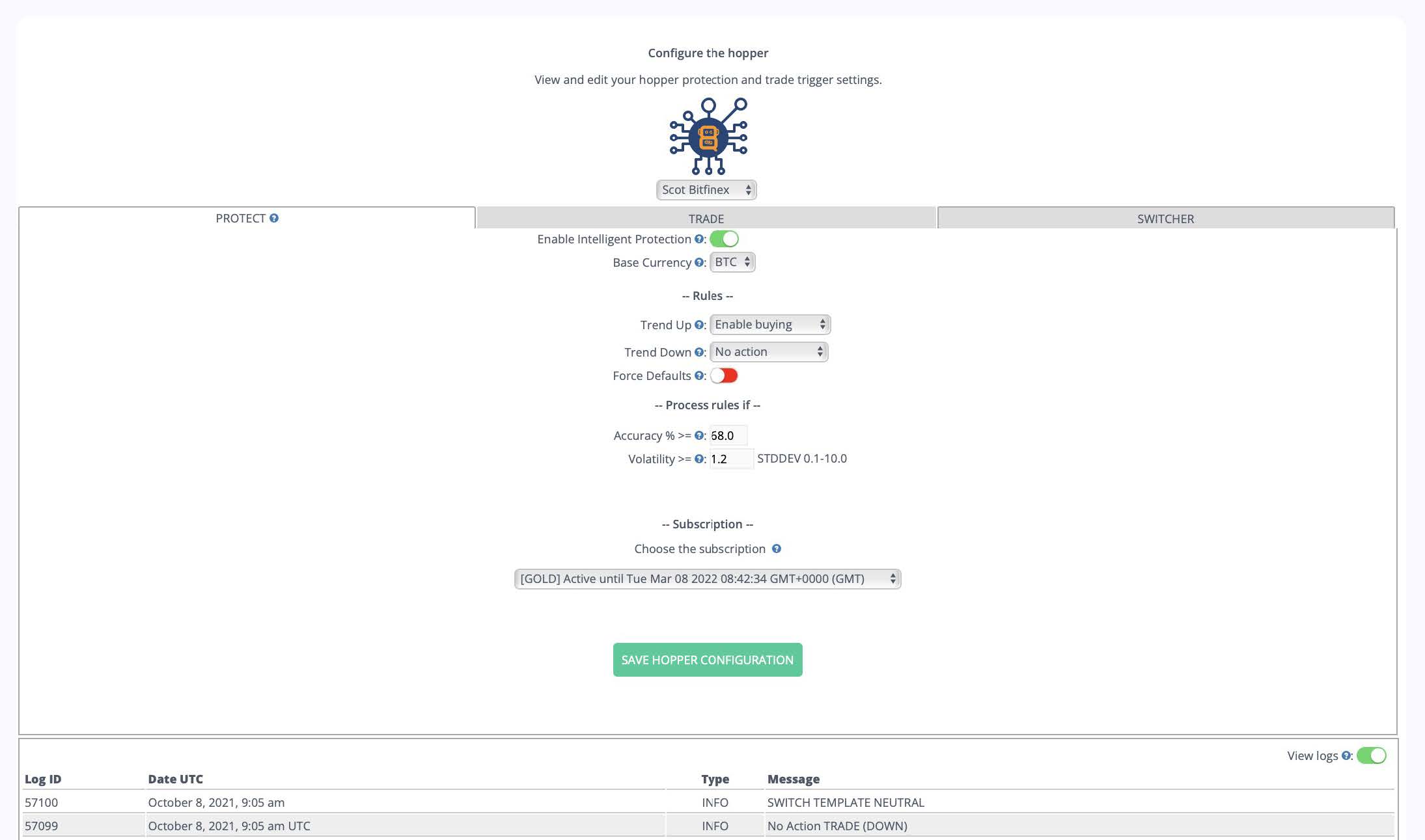
Ajustes del Volatility Protect
Habilitar Protección Inteligente Activa el toggle para activar el Volatility Protect.
Moneda base Selecciona tu moneda de cotización. Por defecto es BTC.
Tendencia Arriba Selecciona la acción a tomar cuando se pronostique que el mercado subirá en la próxima hora. Opciones:
- No hacer nada
- Abrir posición
- Vender posición
- Vender todo
- Venta de pánico
Tendencia Abajo Selecciona la acción a tomar cuando se pronostique que el mercado bajará en la próxima hora. Mismas opciones que Tendencia Arriba.
Forzar Predeterminados Cuando está habilitado, el disparador primero vuelve a habilitar la compra y venta en tu bot antes de procesar las reglas. Si el disparador determina que no se necesita acción, la compra y venta permanecen activas.
Precisión % >= La precisión mínima que Toridion debe haber alcanzado durante las últimas 24 horas antes de que se procesen las reglas del disparador. Por ejemplo, ingresar 68% significa que si la precisión del pronóstico de 24 horas de Toridion es solo del 64%, la acción no se disparará esa hora.
Volatilidad >= La volatilidad mínima requerida para procesar las reglas del disparador. Por ejemplo, ingresar 1.2 significa que las reglas solo se disparan si la volatilidad se calcula en 1.2 o más. Toridion calcula la volatilidad como una función de una desviación estándar de 20 días de los precios de cierre por hora — así que un valor de 1.5 contra una desviación estándar de $100 significa un movimiento requerido de $150.
Al establecer umbrales de precisión y volatilidad, controlas cuándo confías en los pronósticos de Toridion según el rendimiento reciente del mercado. Ajustes de precisión más altos típicamente significan menor volatilidad y trading menos frecuente. Los valores predeterminados del sistema son 68% de precisión y 1.2 de volatilidad. Ten cuidado con ajustes bajos — dependiendo de las comisiones del exchange, las posiciones de baja volatilidad pueden no ser siempre rentables.
Información adicional
Auto Merge Positions La función Auto Merge Positions de Cryptohopper consolida nuevas órdenes en una sola posición. Cuando se usa con datos de Toridion, esto puede causar que se abran múltiples posiciones cuando se dispara un disparador de compra.
Quantabotics respeta el ajuste Máximo de Posiciones Abiertas de Cryptohopper — antes de abrir una orden, el Quantabot compara el número actual de posiciones abiertas con el máximo configurado. Si hay menos posiciones abiertas que el máximo, la orden se coloca.
Sin embargo, si Auto Merge está habilitado, las órdenes pasadas pueden fusionarse en una sola posición, lo que significa que el bot puede ver siempre solo 1 posición abierta y continuar abriendo nuevas órdenes. Hasta que te familiarices con cómo interactúan estos ajustes, se recomienda establecer Máximo de Posiciones Abiertas en 1 para prevenir que múltiples compras no deseadas se fusionen en una sola posición.