Qué son los ajustes en el bot de Creación de Mercados
Una explicación de cada ajuste en la configuración del Bot de Creación de Mercados.
Ajustes básicos
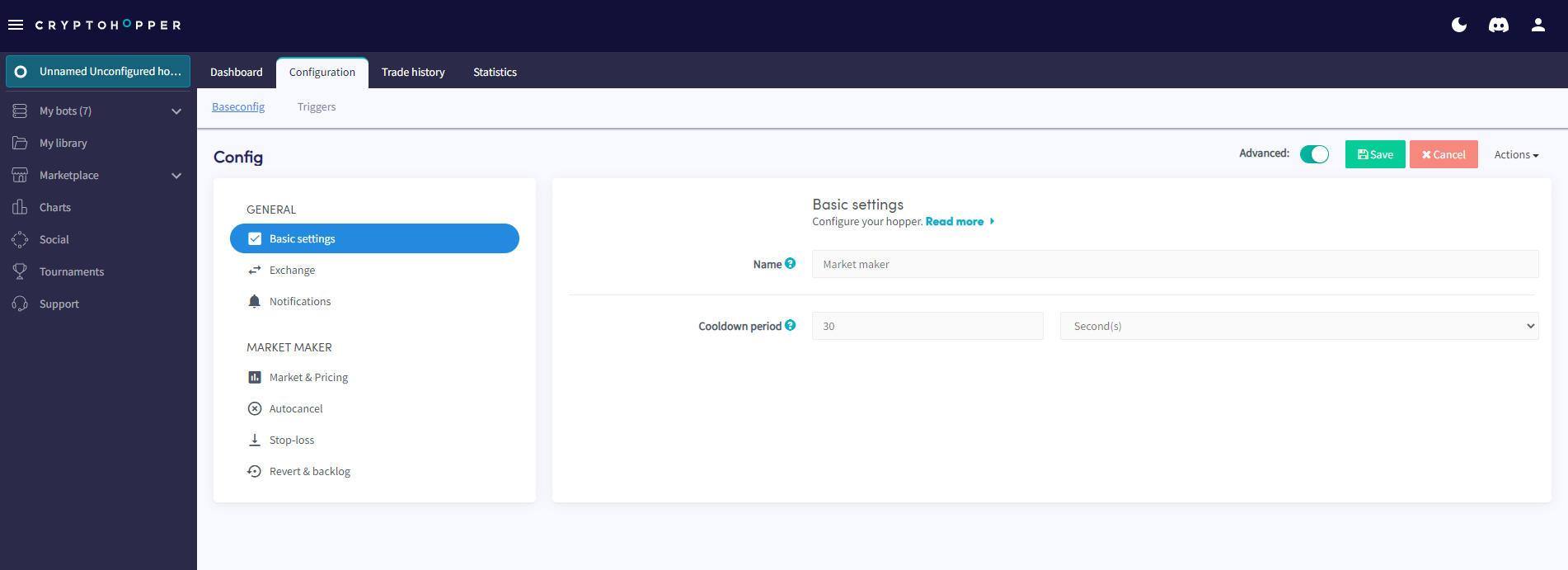
Nombre Dale un nombre a tu bot.
Período de enfriamiento Establece si deseas un período de enfriamiento y cuánto debe durar. El bot esperará este período antes de colocar una nueva orden.
Exchange
Comercio de papel Activa el interruptor para operar con fondos simulados.
Exchange Selecciona tu exchange para operar con fondos reales.
Clave API Ingresa tu Clave API.
Notificaciones
Notificación en trade Cambia el toggle para recibir una notificación cada vez que tu bot realice un trade.
Notificación en error de trade Cambia el toggle para recibir una notificación cuando ocurra un error de trade.
Notificar en orden cancelada Cambia el toggle para recibir una notificación cuando se cancele una orden.
Mercado y Precios
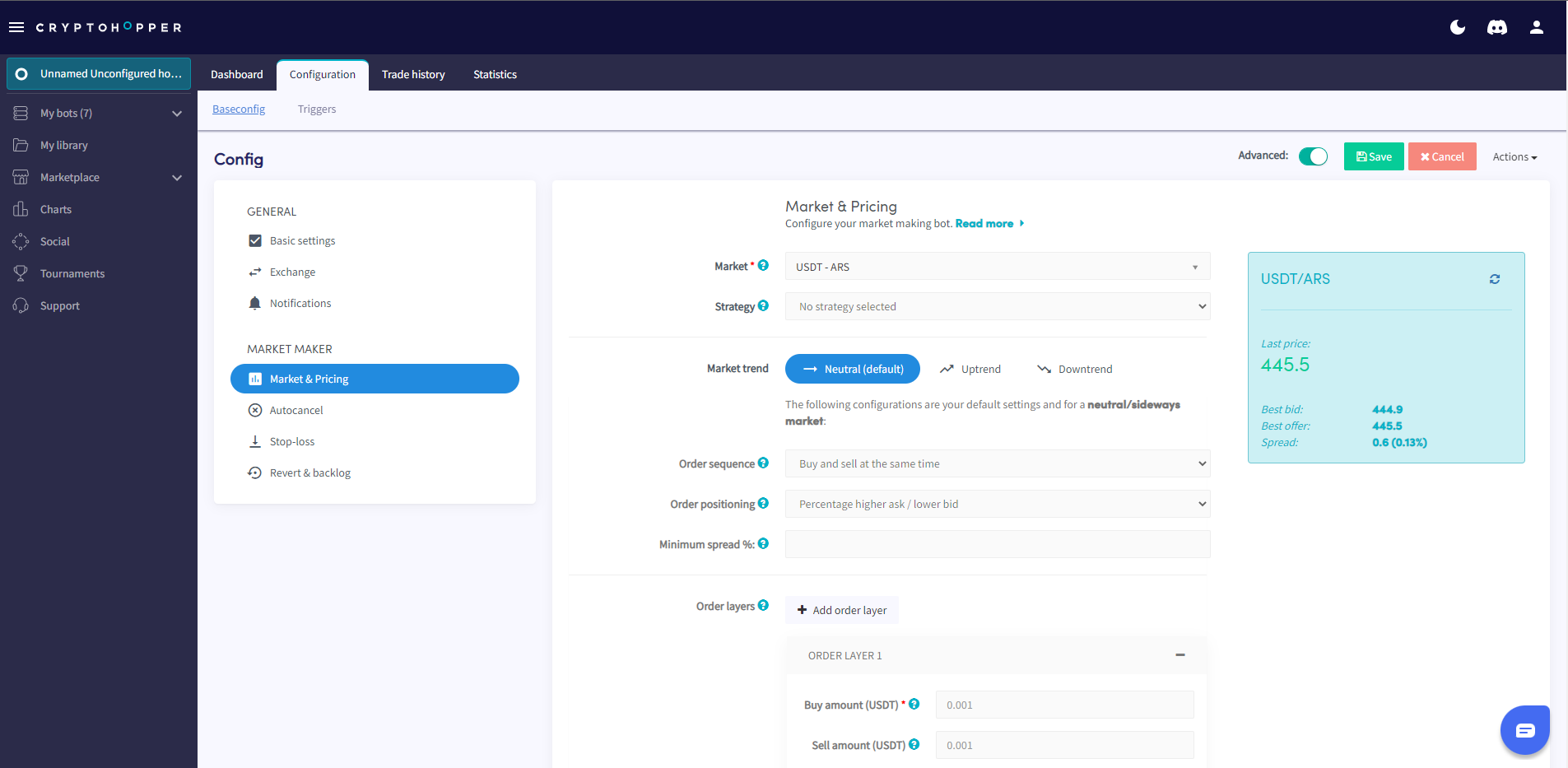
Mercado Selecciona el mercado que deseas crear. El spread actual se muestra en el lado izquierdo — selecciona un mercado con un spread lo suficientemente grande como para obtener ganancias. Tu ganancia debe ser al menos el doble de tu tarifa de trading. Usa la pestaña Mercados de la sección de Gráficos para encontrar monedas con un spread rentable y suficiente volumen de trading.
Estrategia Selecciona la estrategia que tu bot utilizará. Puedes construir la tuya propia o descargar una del Marketplace.
Tendencia del mercado Alterna entre Neutral, Tendencia alcista o Tendencia bajista para configurar cómo se comporta tu bot en diferentes condiciones del mercado. La secuencia de órdenes y el tamaño de posición deben diferir según la tendencia.
Secuencia de órdenes Para un mercado neutral, comprar y vender simultáneamente es estándar. En una tendencia alcista, es típico comprar primero y vender después. Lo opuesto aplica en una tendencia bajista.
Posicionamiento de órdenes Selecciona en qué posición del libro de órdenes deben colocarse tus órdenes. Para ejecutar órdenes rápidamente, se recomienda colocar tu bot como número uno en el libro de órdenes.
Spread mínimo Establece esto en al menos el doble de tu tarifa de trading — de lo contrario operarás con pérdidas.
Capas de órdenes Coloca órdenes en múltiples posiciones del libro de órdenes para crear liquidez. Establece la cantidad de compra por capa, o mantén una sola capa.
Autocancelar
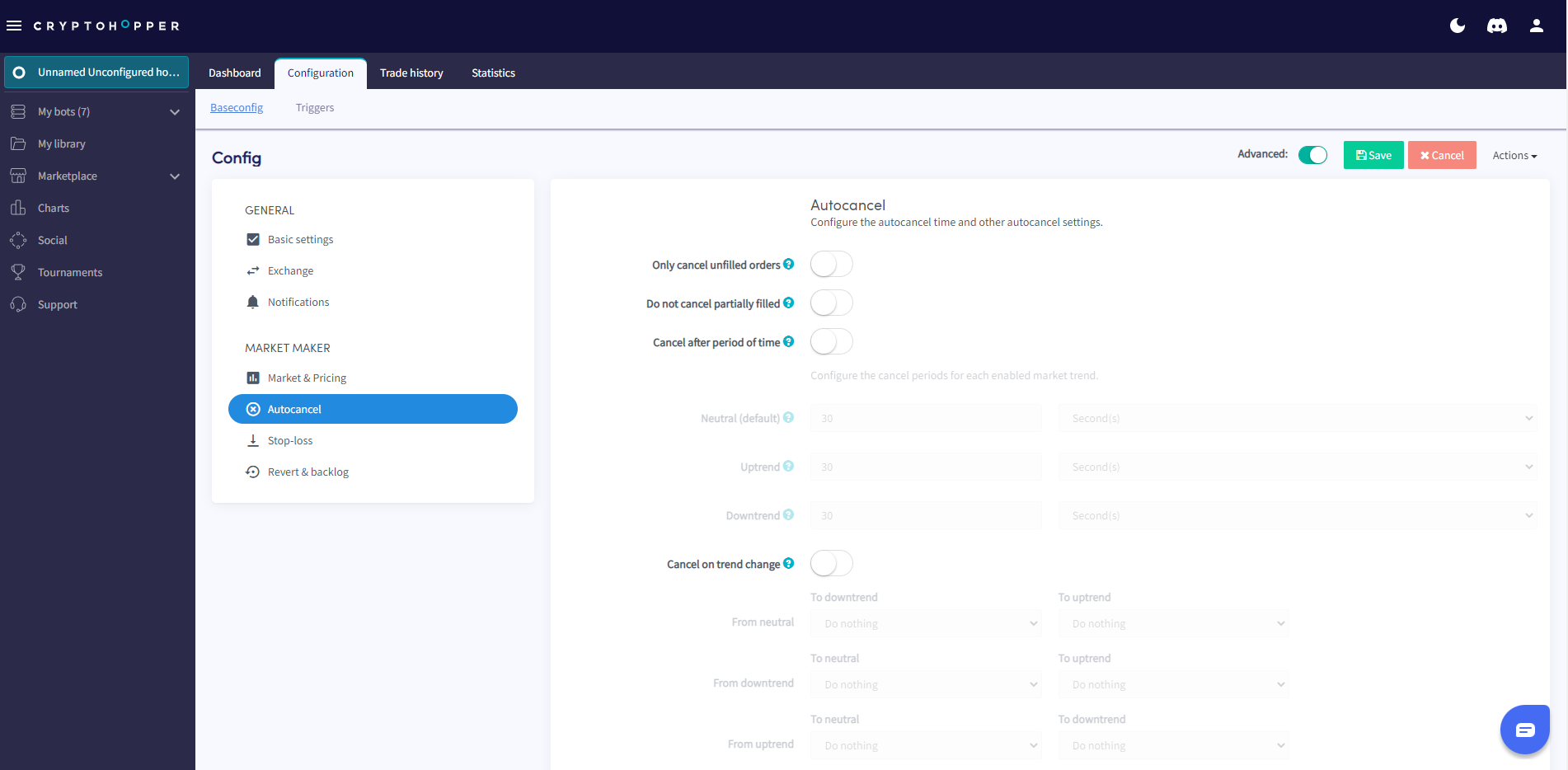
Solo cancelar órdenes no ejecutadas Cuando está habilitado, solo se cancelan las órdenes no ejecutadas. Por ejemplo: si una compra se ejecuta pero la venta correspondiente no, la venta no será cancelada.
No cancelar parcialmente ejecutadas Cuando está habilitado, las órdenes parcialmente ejecutadas no serán canceladas.
Cancelar tus órdenes automáticamente Previene que las órdenes permanezcan abiertas indefinidamente y reserven tus fondos. Elige entre las siguientes condiciones:
- Después de un período de tiempo — cancela órdenes después de un número establecido de segundos, horas o días. Mínimo: 30 segundos. Máximo: 99 días.
- Cancelar al cambiar la tendencia — cancela órdenes cuando cambia la tendencia del mercado, agregando una capa extra de seguridad.
- Cancelar en cambio porcentual — cancela órdenes cuando el precio se mueve un porcentaje establecido. Útil si analizas soporte y resistencia manualmente.
- Cancelar en profundidad — cancela órdenes cuando un número establecido de órdenes de otros traders se colocan delante de las tuyas en el libro de órdenes.
Stop de Pérdida
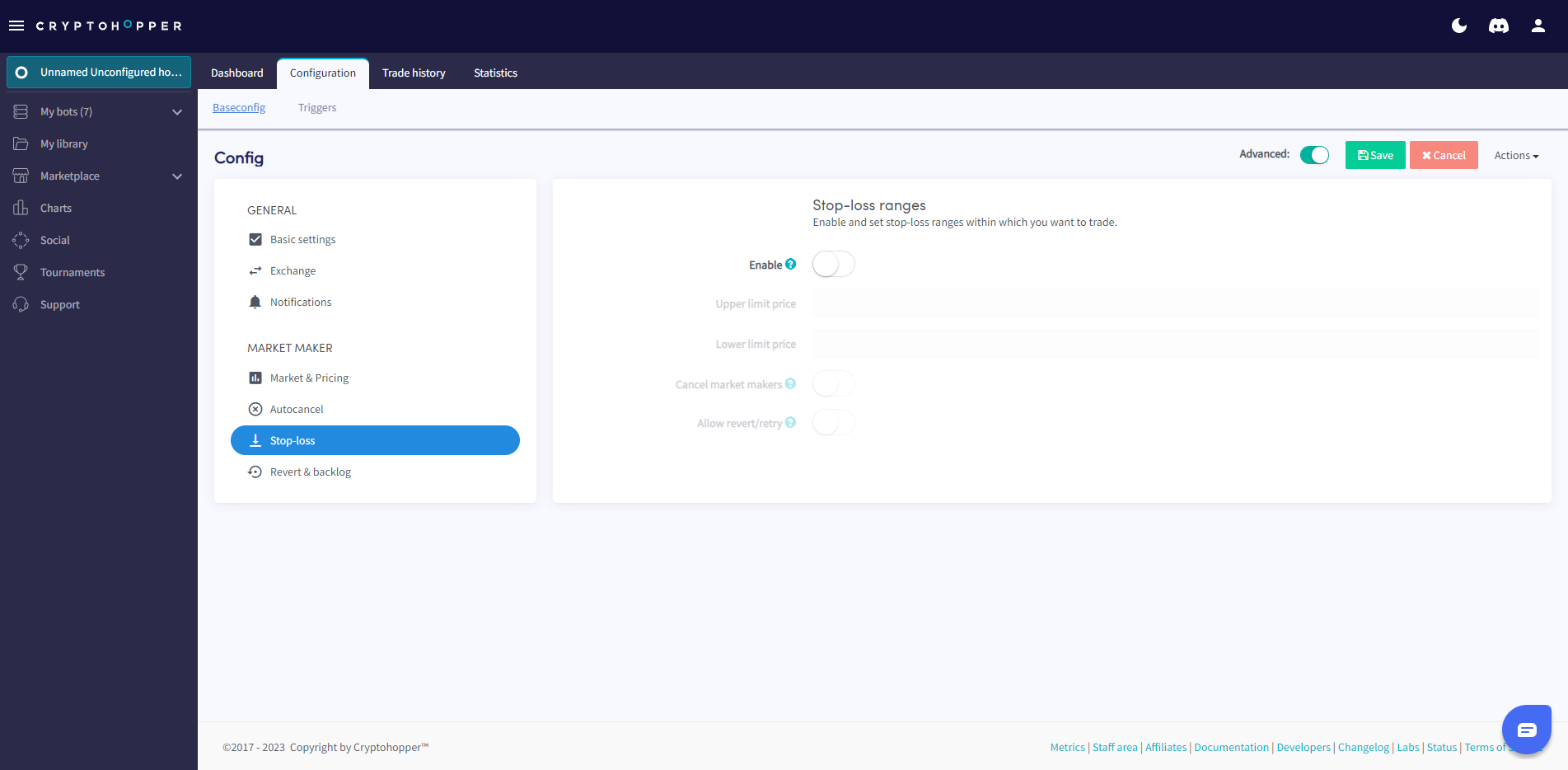
Habilitar Activa el interruptor para activar el Stop de Pérdida. En el Bot de Creación de Mercados, el Stop de Pérdida define el rango de precios dentro del cual tu bot puede operar.
Precio límite superior El límite superior del rango de trading permitido para tu bot.
Precio límite inferior El límite inferior del rango de trading permitido para tu bot.
Cancelar creadores de mercado Cuando está habilitado, tanto las órdenes de compra como de venta se cancelan cuando se alcanza tu Stop de Pérdida.
Permitir revertir / reintentar Cuando está habilitado, las órdenes se colocan de vuelta en el libro de órdenes una vez que el precio regresa dentro del rango configurado.
Revertir y backlog
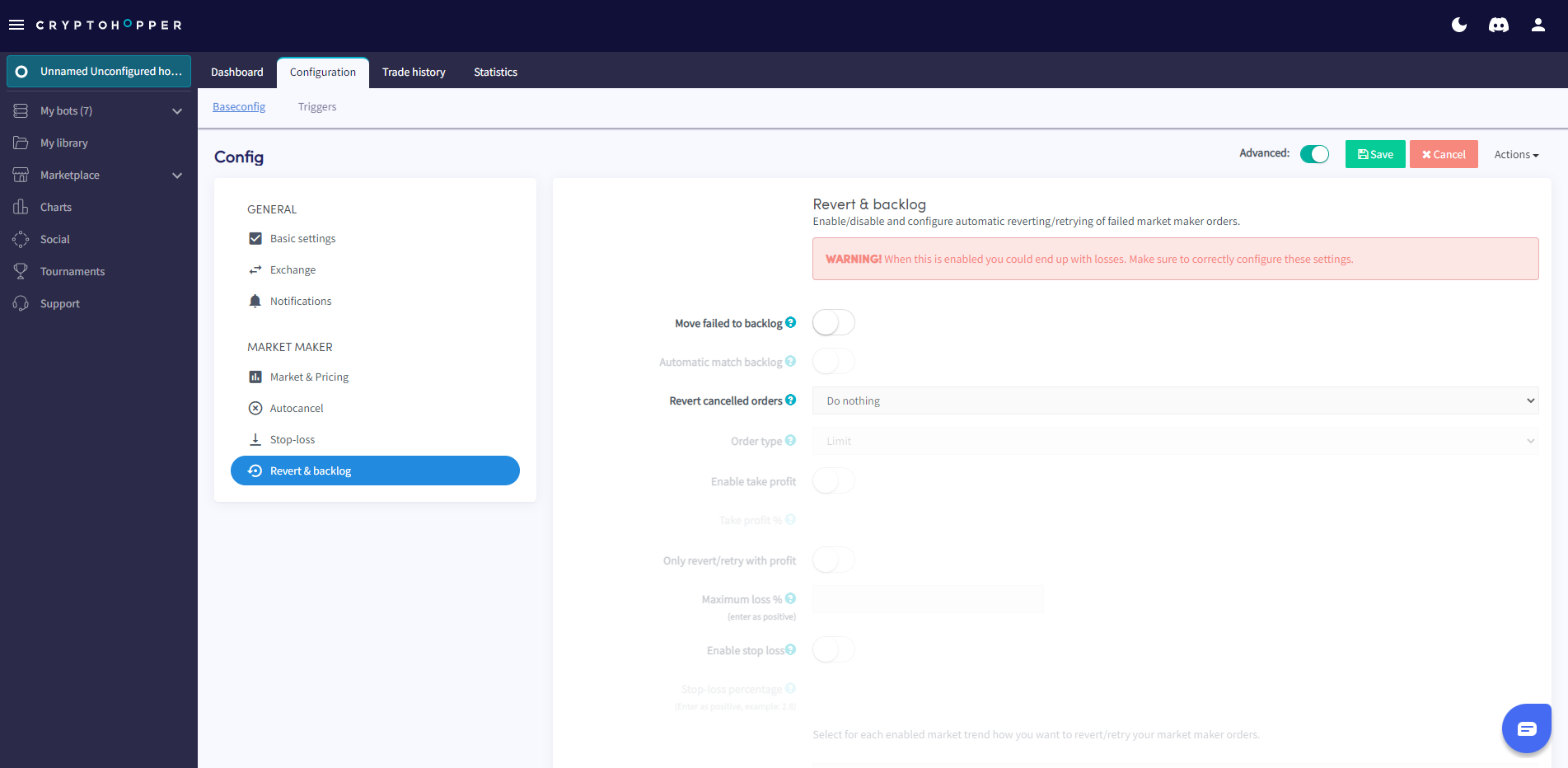
La función de Revertir y Backlog mantiene las órdenes fallidas y canceladas en un backlog para que el bot pueda reintentarlas. Por ejemplo, si una orden de compra tiene éxito pero la venta correspondiente falla, la venta se mueve al backlog. Esto ayuda a mejorar la rentabilidad y evita quedarse con posiciones sin vender.
Mover fallidas al backlog Cuando está habilitado, las órdenes fallidas y canceladas se mueven al backlog para reintentarlas.
Emparejar backlog automáticamente Cuando está habilitado, múltiples órdenes de venta no ejecutadas para la misma moneda se fusionan automáticamente en una posición del backlog.
Revertir órdenes canceladas Cuando está habilitado, las órdenes de Creación de Mercados canceladas y fallidas se revierten y reintentan.
Tipo de orden Selecciona el tipo de orden a usar al revertir órdenes canceladas.
Habilitar toma de ganancias Cuando está habilitado, las órdenes sobrantes intentarán cerrarse con ganancia.
% de toma de ganancias El porcentaje de ganancia al cual se venden las órdenes sobrantes.
Solo revertir / reintentar con ganancia Cuando está habilitado, las órdenes solo se reintentan si pueden cerrarse con ganancia.
% de pérdida máxima El porcentaje máximo de pérdida permitido antes de que se cierre una orden sobrante.
Habilitar Stop de Pérdida Cuando está habilitado, las órdenes sobrantes se venden si caen por debajo del porcentaje de Stop de Pérdida configurado.
Porcentaje de Stop de Pérdida El porcentaje de caída al cual se venden las órdenes sobrantes.
Tendencia neutral, Tendencia alcista y Tendencia bajista Configura por separado cómo debe revertir o reintentar el bot las órdenes de Creación de Mercados en cada condición del mercado.