How to connect to Coinbase Advanced with API Keys
To enable seamless interaction between your bot and Coinbase Advanced, Cryptohopper offers two options. You can either utilize Fast Connect, which involves logging in with your Coinbase Advanced account directly on Cryptohopper (the most convenient option), or create an API Key. Both methods establish a secure connection between Cryptohopper and the exchange, empowering your bot to perform essential tasks such as automated order placement and access to balance information for precise calculations.
You might encounter an error in Cryptohopper's onboarding process when connecting to Coinbase even if your API Keys are correct. The most common reasons include having no funds in your exchange account, having no funds in your trading account (as some crypto exchanges differentiate between funding and trading accounts), or not being a verified exchange user (KYC). In this case, please click on 'Continue without testing'. You can always check your API Keys later in your Base config.
Create API Keys on Coinbase Advanced
Start trading on Coinbase Advanced by creating API Keys:
Step One.
If you haven’t already, got to Coinbase’s website and create an account.
Step Two.
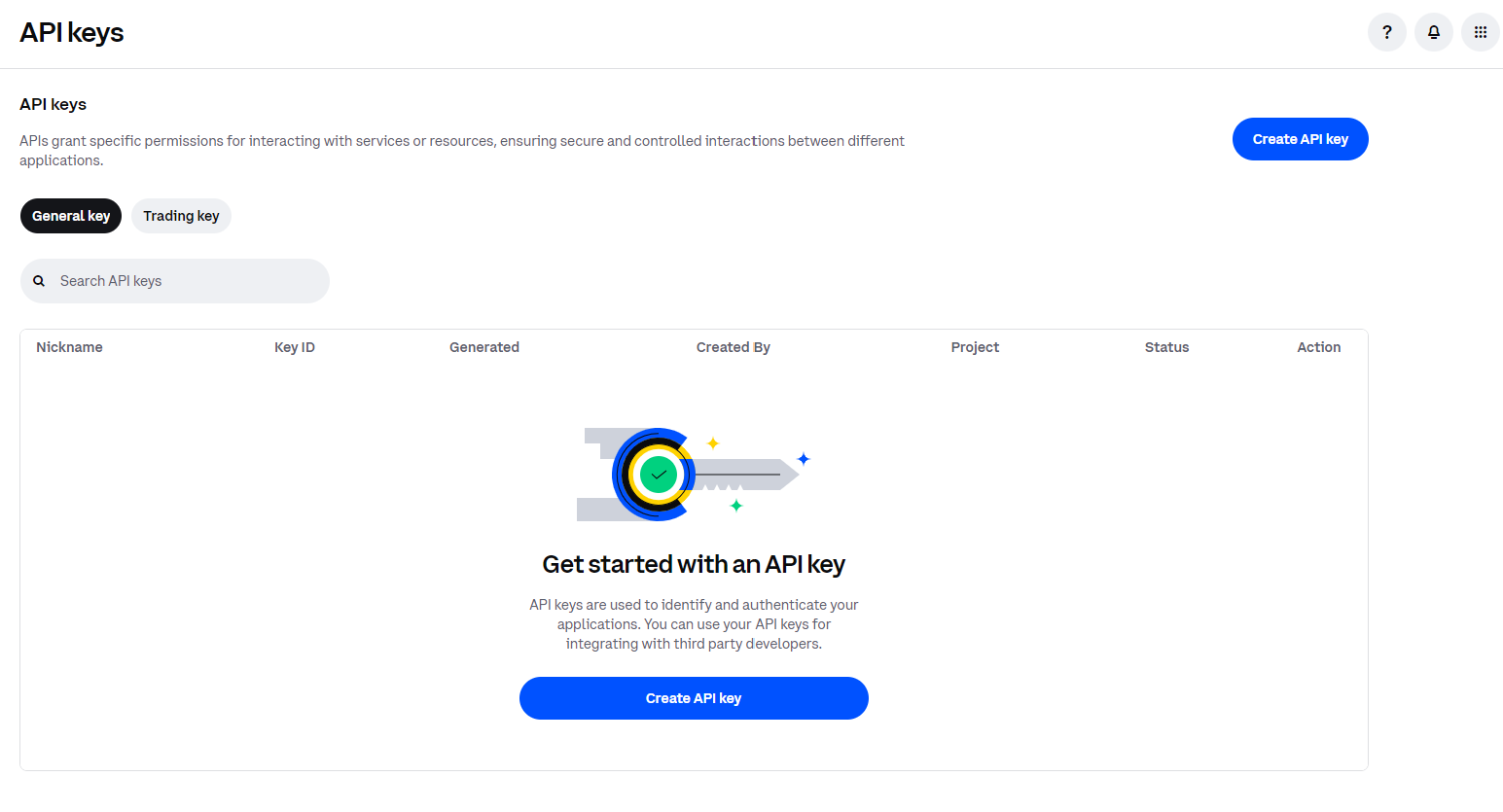
Verify your account and get started on the API by navigating to API Key by clicking here.
Step Three.
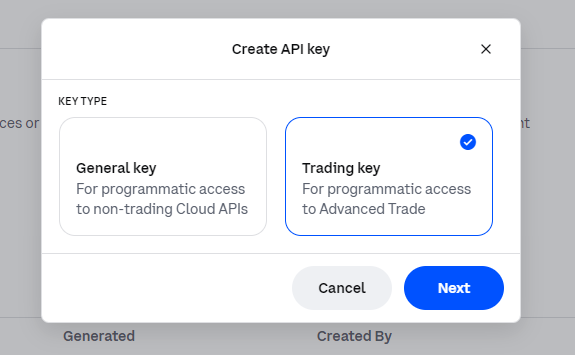
Click on 'Create API Key' and select 'Trading Key'.
Step Four.
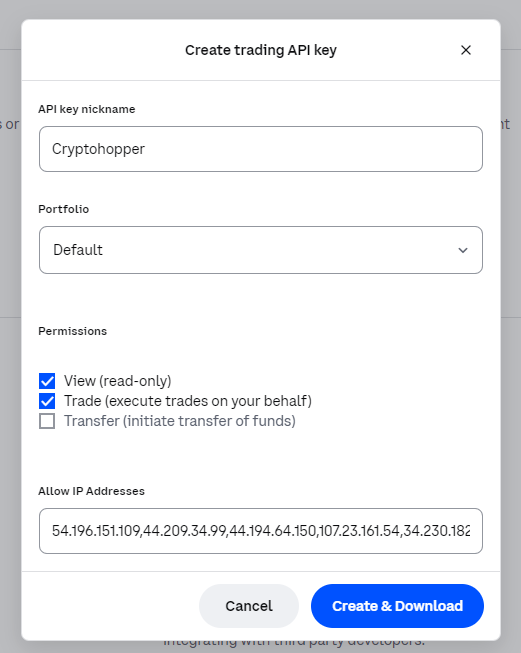
Name your API Key, select your 'Default' portfolio, and enable 'View' and 'Trade'. Additionally, copy and paste the IP addresses that you see in your Cryptohopper Base config under 'Exchange' or from the Connect Coinbase Advanced screen during your Cryptohopper onboarding.
Step Five.
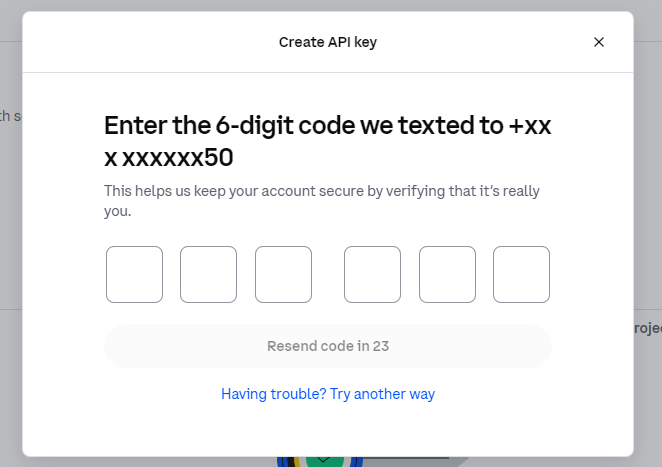
Click on 'Create and Download' and complete the 2FA.
Step Six
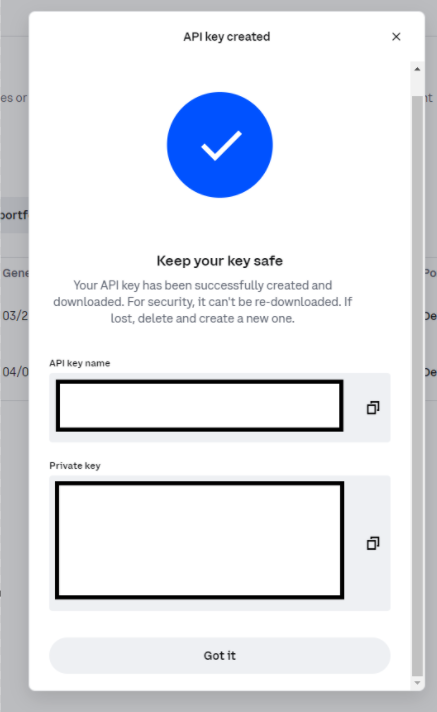
Copy the API Key name and paste it under 'API Key' in Cryptohopper. Also copy the Private key and paste it under 'API Secret' in Cryptohopper.
Step Seven
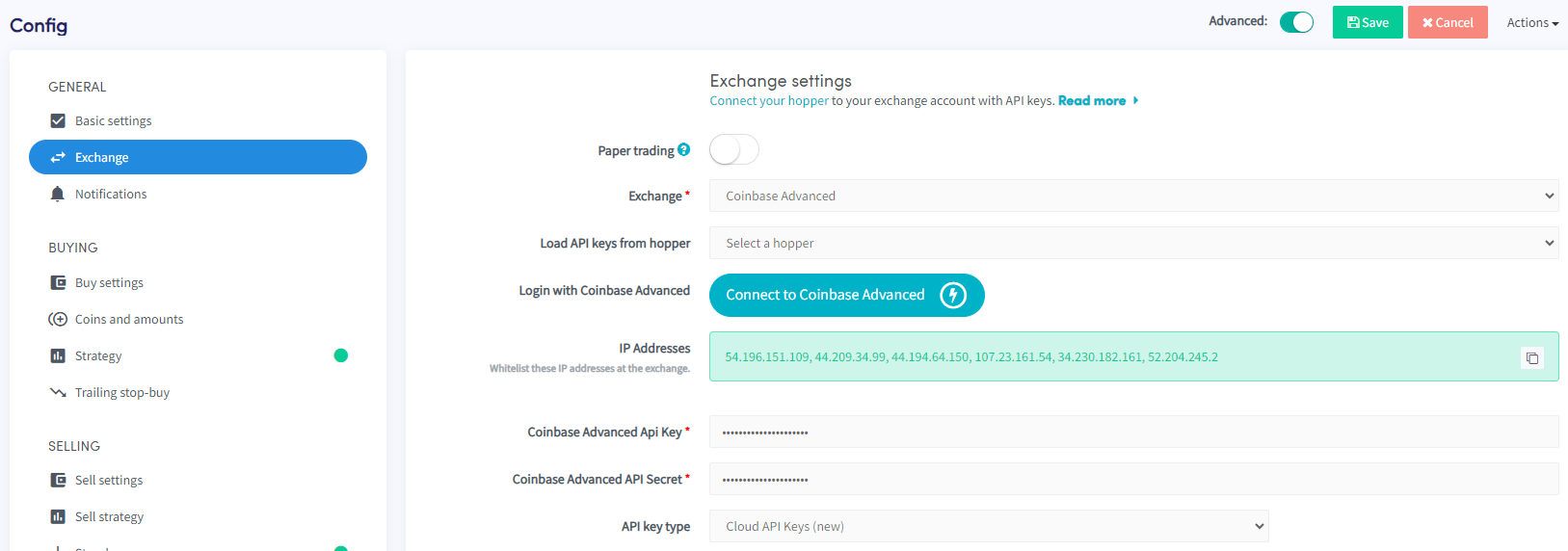
Select 'Cloud API Keys (new)' as API Key type and click on save. You're trading bot is now connected to Coinbase Advanced.
Unable to see exchange balance
If you are unable to see your exchange balance, there may be a few issues preventing your trading bot from synchronizing with your exchange. One common cause is "auto-fill" being enabled in your browser. To fix this, you can try disabling auto-fill, using incognito mode, using a different browser, or disabling your password manager. For more information, you can watch our Cryptohopper Academy video on this subject or check our troubleshooting article.
Coinbase Advanced minimum trade amounts
Click here to see the minimum trade amounts on Coinbase Advanced.
Coinbase Advanced status
If you are experiencing issues with trading on Coinbase Advanced, you can check the current exchange status by clicking here.